skip to main content

Compiler and Runtime : Getting Started : Download and install isCOBOL Evolve

Download and install isCOBOL Evolve
Windows
1.
2.
3.
4.
5.
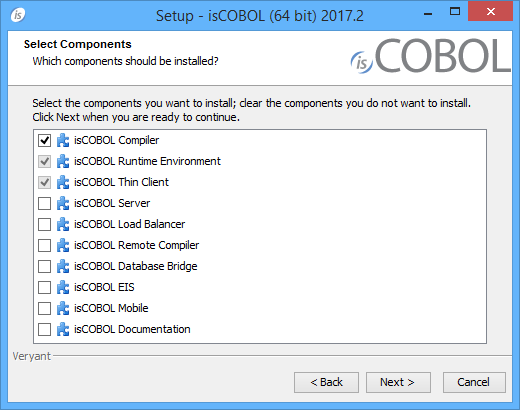
Scroll down to the list of files for Windows x64 64-bit or Windows x86 32-bit. Select isCOBOLyyyyR_n_Windowsarc.exe, where yyyy is the year, r is the release number, n is the build number and arc is the system architecture.
6.
Note - If your Windows has the option "Run as Administrator", you should run the setup with that option, otherwise the setting of environment variables might silently fail. Environment variables setting is not necessary if you work from the isCOBOL Shell (explained later).
7.
8.
9.
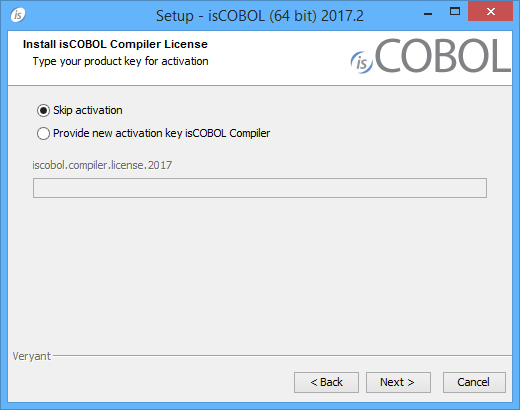
Note - You can skip license activation and perform it later, as explained in Activate the License.
 
UNIX/Linux
1.
2.
3.
4.
5.
6.
7.
The following text depends on the current environment:
8.
9.
 
The setup script might not be available for your Unix platform or you might want to avoid it. In this case you can just extract the tgz in the destination folder. If you do in this way, then the following environment variables must be set in the system in order to compile, run and debug: ISCOBOL_JDK_ROOT (or ISCOBOL_JRE_ROOT), ISCOBOL, LD_LIBRARY_PATH and PATH.
For example, if you install isCOBOL in "/opt/isCOBOL" and your JDK is in "/opt/java/jdk1.8.0":
Other Unix
isCOBOL for UNIX-like environments is distributed in a tar file. The name of the file is isCOBOL_Version_Platform.tar.gz. For example, isCOBOL 2017 R2 for Sun Solaris 32 bit is contained in a file called isCOBOL_2017_R2_build-number_release-date_revision-number_SunOS.32.tar.gz.
Currently available platforms are:
For any other UNIX platform the MULTI setup can be used.
Extract the tar with the following command
These two files are extracted:
o
isCOBOL_Version.tar
o
Run the setup
The setup script produces an output like:
The following text depends on the current environment:
If points 1 to 8 contain accurate information, you can start the installation process by typing “S” and pressing Enter.
If you want to change any of the points, type the corresponding number and press Enter, then answer to the question. The output shown in the above snippet will be updated to reflect the change you made.
For example, if you want to avoid the generation of isCOBOL ISAM Client component
1.
2.
3.
4.
When every setting reflect your needs, type “S” and press Enter to start the installation process.
Point 1 can’t be changed while point 6 shouldn’t be set to an operating system different than the one where we’re running the script.
A C compiler is required for generating components (points 3 to 5).
If the MULTI setup completes without error, the following folder is generated:
isCOBOLVersion
The content of the folders varies depending on the choices you made before issuing the “S” command.
Distribution Files
For information on a specific distribution file, please see the README file installed with the product.

Copyright (c) 2017 Veryant
Contact us
Please share your comments on this manual or on any
Veryant product documentation with the email button at the top left