skip to main content

Integrated Development Environment (IDE) : Configuration : Customization : Configuring isCOBOL Tools

Configuring isCOBOL Tools
isCOBOL Utilities Settings
These panels allow to configure the Class Path and the Environment for the GIFE utility. See Setting the Class Path and Setting the Environment for details about the Class Path and Environment panels. This kind of setting is particularly useful in order to add JDBC driver libraries for the “easydb” file handler.
These panels allow to configure the Class Path and the Environment for the ISMIGRATE utility. See Setting the Class Path and Setting the Environment for details about the Class Path and Environment panels. This kind of setting is particularly useful in order to add JDBC driver libraries for the “easydb” file handler.
These panels allow to configure the Class Path and the Environment for the ISL utility. See Setting the Class Path and Setting the Environment for details about the Class Path and Environment panels. This kind of setting is particularly useful in order to add JDBC driver libraries for the “easydb” file handler.
This panel allows to configure the Class Path for the cpgen command. See Setting the Class Path for details about this panel.
This panel allows to configure the Class Path for the JDBC2FD utility. It’s particularly useful in order to add JDBC driver libraries. See Setting the Class Path for details about this panel.
isCOBOL Server Settings
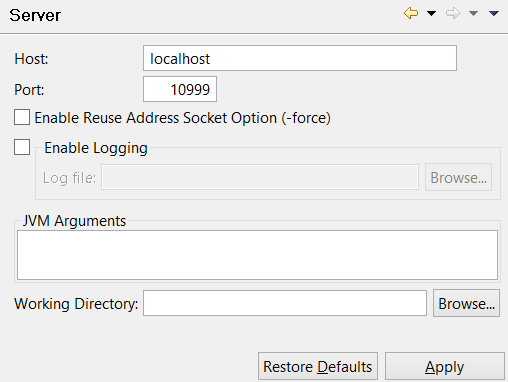
The “isCOBOL Server” panel allows you to set options and parameters for the isCOBOL Server managed by the isCOBOL IDE.
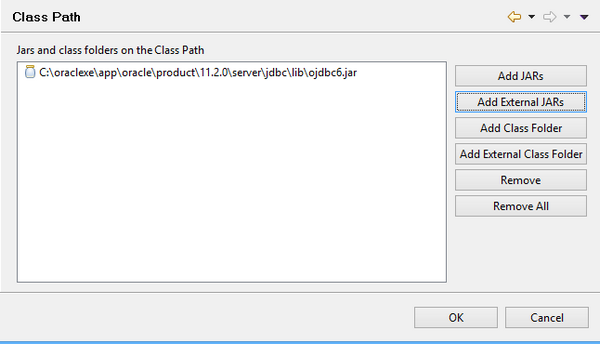
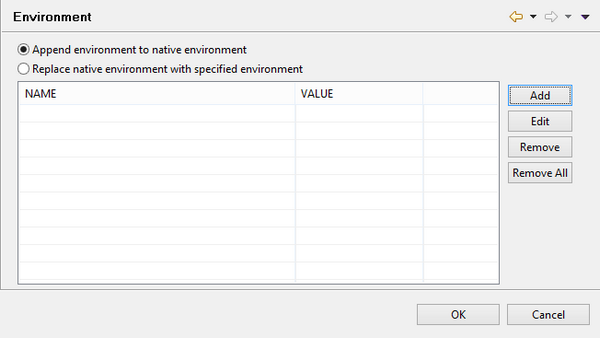
The “Class Path” panel allows to add jars and folders to the isCOBOL Server Class Path. The “Environment” panel allows to set environment variables for the isCOBOL Server. See ...
Setting the Class Path
Use the "Add JARs" button to browse for a jar among project folders and add it to the Classpath.
Use the "Add External JARs" button to browse for a jar among system folders and add it to the Classpath.
Use the "Add Class Folder" button to browse for a folder in the project and add it to the Classpath.
Use the "Add External Class Folder" button to browse for a folder in the system and add it to the Classpath.
Use the "Remove" button to remove an item from the list.
Use the "Remove All" button to clean the list.
Setting the Environment
Use the "Add" button to define a new environment variable.
Use the "Edit" button to change the value of the selected variable.
Use the "Remove" button to remove a variable from the list.
Use the "Remove All" button to clean the list.
When the "Append environment to native environment" option is selected, in the process environment are included the variables specified by the user plus the variables already defined in the system. If a variable specified by the user is already defined in the system, its value is overridden.
When the "Replace native environment with specified environment" option is selected, in the process environment are included only the variables specified by the user.
The library path variable (PATH on Windows, LD_LIBRARY_PATH on Linux/Unix) is managed differently, as follows: if it is already defined in the process environment, either by the user or by the system, the isCOBOL native libraries location is appended to its value; if it is not defined, it is set to the isCOBOL native libraries location.
Load Balancer Settings
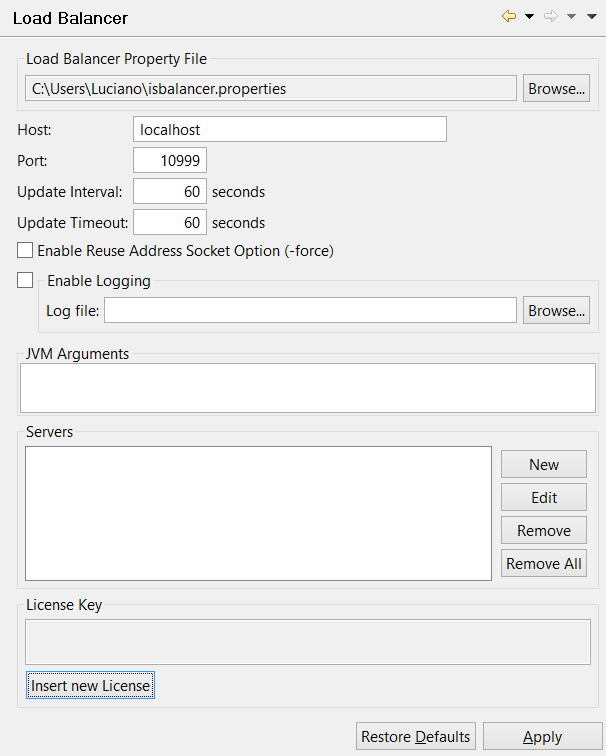
The “Load Balancer” panel allows you to set options and parameters for the isCOBOL Load Balancer managed by the isCOBOL IDE.
Remote Compiler Settings
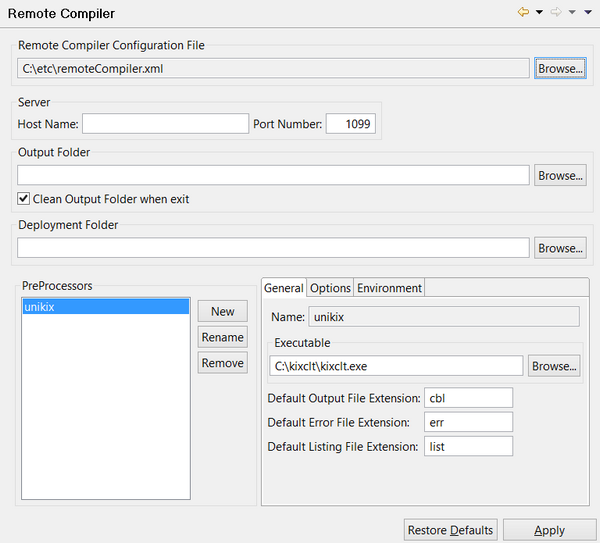
The “Remote Compiler” panel allows you to set options and parameters for the Remote Compiler managed by the isCOBOL IDE.

Copyright (c) 2017 Veryant
Contact us
Please share your comments on this manual or on any
Veryant product documentation with the email button at the top left