skip to main content

Integrated Development Environment (IDE) : The isCOBOL IDE Perspective : Editors : Code Editor

Code Editor
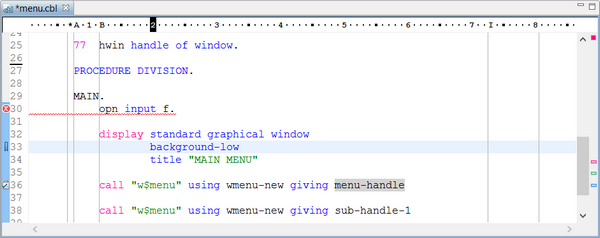
The Code Editor modifies COBOL code as well as other text. COBOL keywords are shown with a different color so they can be easily distinguished from strings, numbers and standard text. The Code Editor also offers a code completion feature and is used as an integrated Debugger.
On the left side of the Code Editor, Bookmarks, Tasks, compiler errors and Debugger breakpoints are shown.
Vertical lines are shown to help you align the code according to the active source format. You can change the active format at any time by right clicking in the editor area and choosing Source from the pop-up menu.
Code Completion
In order to take advantage of the code completion feature, you can press Ctrl+Space or right click and select “Code Completion” from the pop-up menu. The Editor will suggest some possible items depending on the context.
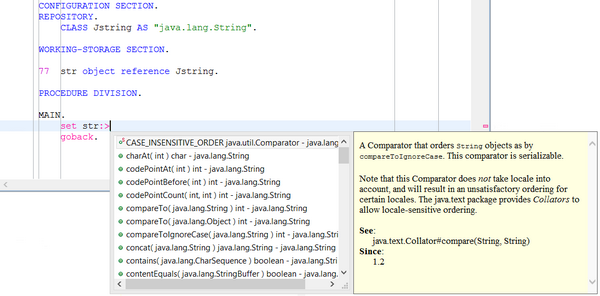
For object oriented programming, the code completion is automatic. For example, if you write the name of an object reference, followed by “:>” the Editor will automatically list the object methods along with their javadoc.
Data Items highlight
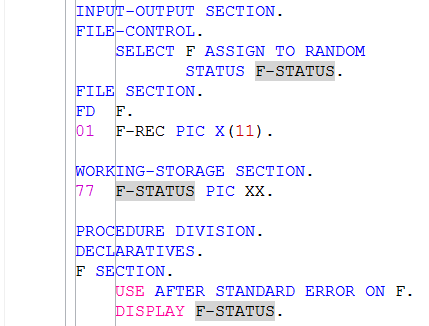
If you left click on a data-item name, all occurrences of that data-item in the current source file are highlighted.
When a data-item has been highlighted, it’s possible to add it to the list of monitored variables in the Debugger perspective. Right click on the item name and select “Add variable” from the pop-up menu.
Tooltip items definition
When you leave the mouse pointer on the name of a data item, a tooltip appears and shows the item definition.
Text Selection upon mouse clicks
By multiple clicking within a text string, you can obtain different text selections.
One click places the cursor within the string:
Two clicks among the letters of a word select the whole word:
Two clicks between the quotes and the first digit after the quotes select all the quoted text:
Three clicks select the whole line:
Block Selection
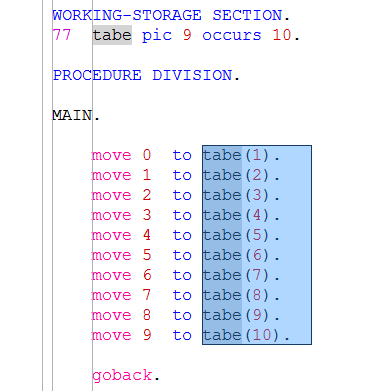
This feature allows the user to select a block of code by drawing a rectangle in the source area. This is also known as Rectangle Selection or Vertical Selection. To activate this feature press Alt+Shift+A. The cursor shape will change to a cross and it will be possible to select a block of text like shown in the picture below. To restore the standard cursor and stop taking advantage of the feature, press Alt+Shift+A again.
Text case altering
When a block of text is selected, you can change the case of its words with one of the following shortcuts.
The same functions are available in the Source menu.
Correct Indentation
When a block of text is selected, you can ask the Editor to correct the indentation of the rows with the following shortcut.
The same function is available in the Source menu.
Open Declaration
This feature allows the user to jump to a paragraph or variable declaration. To take advantage of it, select the variable or paragraph name, then press F3 or right click and select “Open Declaration” from the pop-up menu.
Horizontal Ruler
This feature causes a ruler bar to be shown at the top of the editor. It helps to monitor the cursor position while typing text.
The ruler is not shown by default, it must be activated in the Preferences. See Setting Editor preferences for details.
Find Scope
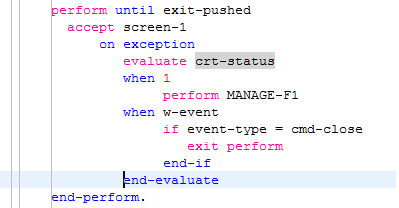
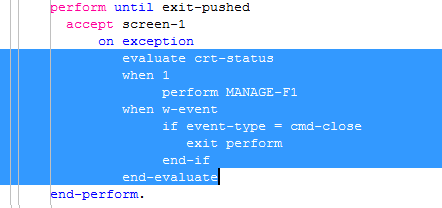
This feature allows to highlight a block. This is useful to double check if all blocks are closed correctly in a source file where there are a lot of nested statements. To take advantage of this feature, place the cursor on a statement or on a END-statement.
After it, press CTRL+SHIFT+S to highglight the whole block. Alternatively it’s possible to right click and choose Source -> Find Scope from the pop-up menu.
Sequence Number
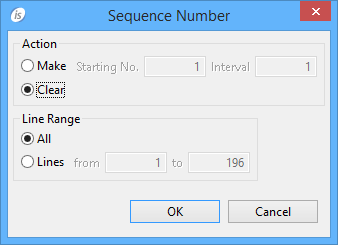
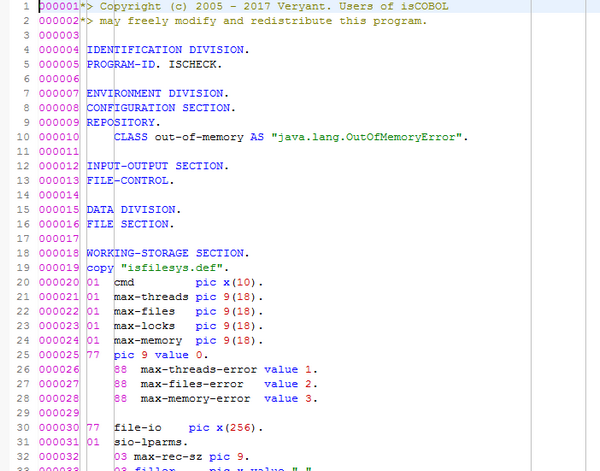
This feature allows to generate line numbers in the sequence number area (columns 1 to 6) of ANSI source files. To activate it, click on the Source menu in the menu bar or right click in the code editor and choose Source from the pop-up menu, then choose Sequence Number. The following dialog is shown allowing to provide line numbering rules.
Action allows to choose between clearing existing line numbers or generating new ones starting from a given number (default: 1) and using a given interval (default: 1).
Line Range allows to specify which lines in the source file will be updated. By default, all lines are updated.

Copyright (c) 2017 Veryant
Contact us
Please share your comments on this manual or on any
Veryant product documentation with the email button at the top left