skip to main content

Integrated Development Environment (IDE) : Importing a Program with Screen Section

Importing a Program with Screen Section
isCOBOL IDE allows to import programs with Screen Section in order maintain their screen through the Screen Designer. Programs source files are read from disk and transformed into isCOBOL Screen Programs.
Before performing this kind of import, the following steps have to be followed:
1.
Ensure that the IDE is set to generate code in the same format of the program you’re going to import. This setting is available by choosing Window in the menu bar, then Preferences and eventually selecting isCOBOL > Code Generator from the tree. The "Source Format" setting must be "ANSI" or "Terminal" according to the format of the source file(s) you’re going to import.
2.
In the Properties of the project that will host your program, change compiler options by activating all the flags that are necessary for the compilation of the program you’re going to import. For example, if the source code contains the syntax RECORDING MODE IS V, activate the -cv option. Also ensure that the -sp option contains all the necessary paths to find the copybooks declared in the program; these paths must be physical paths selected from the file system, Eclipse aliases are currently not considered by the import logic.
3.
At this point you can proceed with the import of the program with Screen Section.
1.
2.
Choose Import from the pop-up menu.
3.
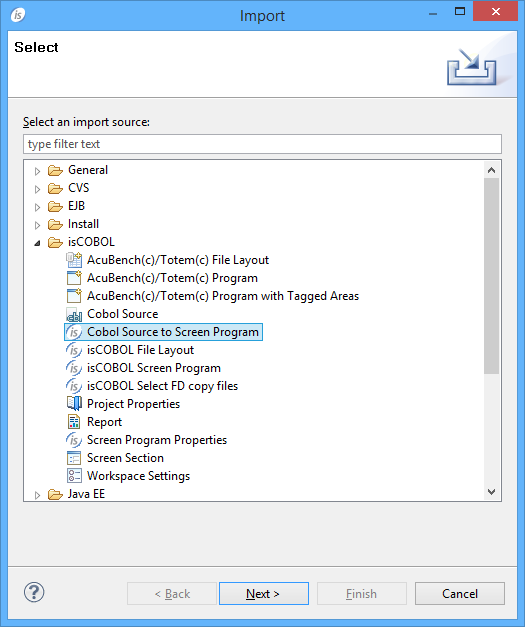
Choose Cobol Source to Screen Program from the tree
4.
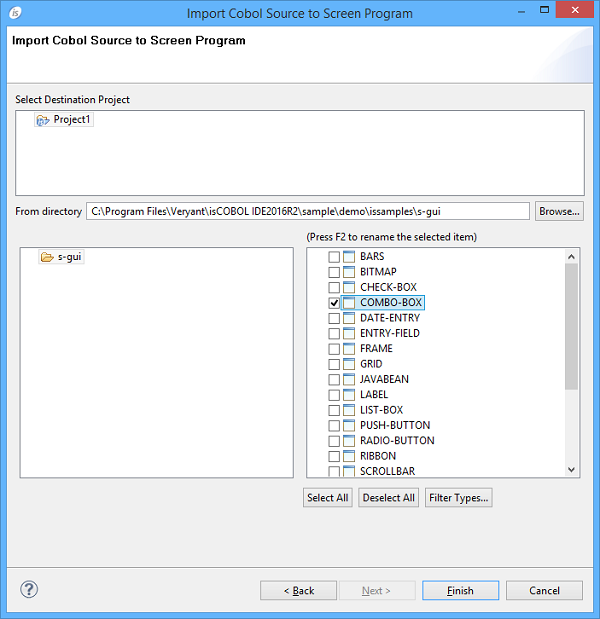
By default, only files with “.cbl” extension are considered. If your source files have different extensions, click on the Filter Types... button to configure it.
5.
This kind of Import is subjected to the following limitations:
1.
2.
3.
4.

Copyright (c) 2017 Veryant
Contact us
Please share your comments on this manual or on any
Veryant product documentation with the email button at the top left