skip to main content

Update Facility : Usage and configuration of isCOBOL Updater

Usage and configuration of isCOBOL Updater
Once the HTTP server has been properly configured, it’s possible to run the isupdater tool from the client machines.
Usage
iscupdater -c configuration_file [-stop] [-icon image_file]
Where:
configuration_file is the properties file used to instruct the isupdater tool on server location and current version.
-stop, if used, the isupdater tool just checks for the availability of updates and in case it informs the user with a message box, but nothing is downloaded.
image_file is a picture suitable for Java (e.g. a GIF or PNG file) that will be shown as custom icon instead of the Java logo.
Client configuration
See Client Configuration (isupdater.properties) for the list of the properties that can be used to configure the isupdater tool.
The following sample configuration tells that the HTTP server to check for updates is 192.168.0.13, listening on the port 10996. The swupdater.properties file is expected in the sub directory "site". It also tells that the current version of isCOBOL’s bin and lib folders is 90 and the folder where downloaded files should be saved is C:\Temp:
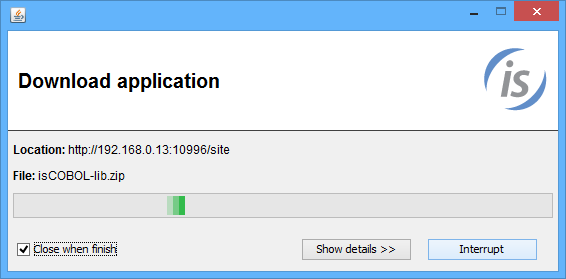
With reference to the server configuration previously explained, since the client side version (90) is less that the version available on the server (100), the download process starts.
At the end of the download process, the isupdater tool rewrites the configuration file putting the new version in it:
Post update
Once the download process has been completed, the folders isCOBOL-lib and isCOBOL-bin will be available in C:\Temp. If they contain a class named POSTUPDATE.class, then isupdater will automatically run it passing the destination folder as parameter. You can rely on this feature in order to code post update operations such as copying downloaded files to a different folder.
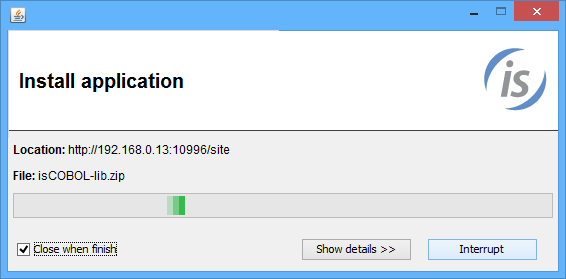
During the execution of this class, the isupdater dialog changes as follows:
If the property swupdater.mainclass was set, then isupdater automatically runs the specified class along with the arguments. In the above example the command Isrun -v is executed in order to show a message box with the current version of the runtime.
The following alternate example shows how to call a server program named MENU using the thin client technology after the update:

Copyright (c) 2017 Veryant
Contact us
Please share your comments on this manual or on any
Veryant product documentation with the email button at the top left