skip to main content

Usage of isCOBOL Client

Usage of isCOBOL Client
Format 1
To execute a program, use the following command:
iscclient [--system | --metal | --motif | --GTK | --nimbus] [-port port] [-hostname host] [-c remote-config] [-lc local-config] [-nodisconnecterr] [-noupdate] program [ arg1 [arg2] ... ]
where:
--system, --metal, --motif and --GTK specifies the Look and Feel for the GUI displayed client side.
If none of these options is used, then the --system is assumed.
port is the port number the server is listening to.
host is the host machine where the server is running.
 
port and host can specify multiple values separated by comma. See Specifying multiple hostnames and ports for details.
remote-config is the configuration file that the client should use. This file is loaded server-side and its entries are appended to the configuration file used to start the isCOBOL Application Server. This option allows you to have different configurations for different clients.
local-config is the configuration file that hosts client-side settings, for example configuration properties for programs called through the CALL CLIENT statement.
-nodisconnecterr, if used, avoids a notification message box to appear when the connection between client and server is lost. This option should always be used when a X Window System (X11) is not available on the client. This option is automatically set by the kill command described in Format 3.
-noupdate, if used, makes the client avoid looking for updates before starting.
program is the program to be executed. It must be a standard COBOL program with PROGRAM-ID. Paths are not allowed in this parameter.
arg1 and arg2 are the arguments passed to the program.
 
Format 2
To show information about an Application Server module, use the following command:
iscclient [-port port] [-hostname host] [-user usr] [-password pwd] -info
where:
port is the port number the server is listening to.
host is the host machine where the server is running.
 
port and host can specify multiple values separated by comma. See Specifying multiple hostnames and ports for details.
usr and pwd are the administrator user credentials, that are necessary to access the administration panel under the default configuration. If not passed, then a login prompt will be shown. See Login for more information.
 
Format 3
To kill a thread running on the specified server, use the following command:
iscclient [-port port] [-hostname host] [-user usr] [-password pwd] -kill {threadID }
where:
port is the port number the server is listening to.
host is the host machine where the server is running.
 
port and host can specify multiple values separated by comma. See Specifying multiple hostnames and ports for details.
usr and pwd are the administrator user credentials, that are necessary to access the administration panel under the default configuration. If not passed, then a login prompt will be shown. See Login for more information.
threadID is the ID of thread to be killed. (Use the -info option to return a list of currently running threads).
AS (an alternate parameter of threadID) indicates that the Application Server should stop. All alive clients are automatically disconnected when the Application Server stops.
 
Format 4
To open a window in which users can be managed, use the following command:
iscclient [-port port] [-hostname host] [-user usr] [-password pwd] -admin
where:
port is the port number the server is listening to.
host is the host machine where the server is running.
 
port and host can specify multiple values separated by comma. See Specifying multiple hostnames and ports for details.
usr and pwd are the administrator user credentials, that are necessary to access the administration panel under the default configuration. If not passed, then a login prompt will be shown. See Login for more information.
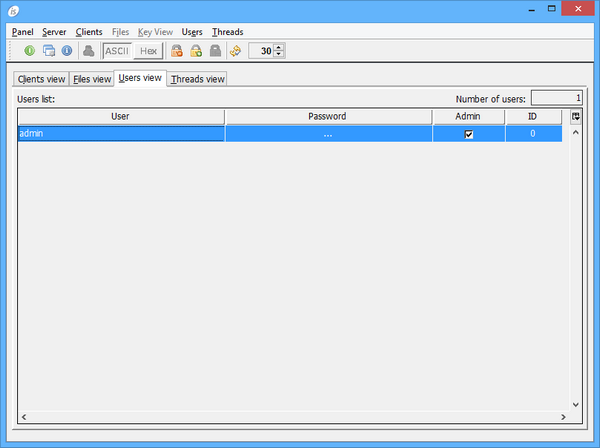
A row for each registered user is shown. Columns have the following meaning:
Tool-bar buttons and menu items allow you to
The table where users are listed is editable. Double click in the cells in order to edit their value.
Format 5
To open a window in which client sessions are managed, use the following command. The administrator can see a list of connected clients, kill a client, and even shutdown the Application Server.
iscclient [-port port] [-hostname host] [-user usr] [-password pwd] -panel
where:
port is the port number the server is listening to.
host is the host machine where the server is running.
 
port and host can specify multiple values separated by comma. See Specifying multiple hostnames and ports for details.
usr and pwd are the administrator user credentials, that are necessary to access the administration panel under the default configuration. If not passed, then a login prompt will be shown. See Login for more information.
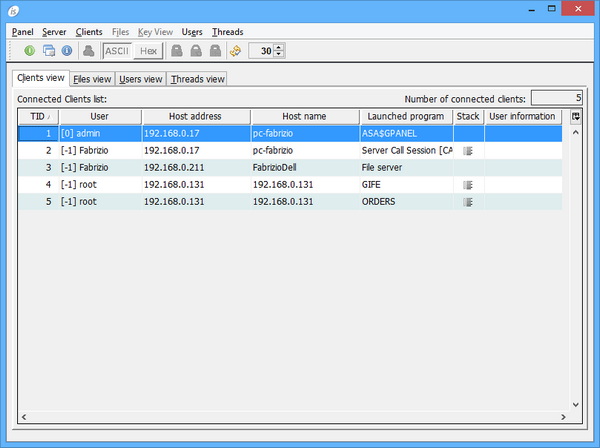
The standard dialog that appears with this command looks like this:
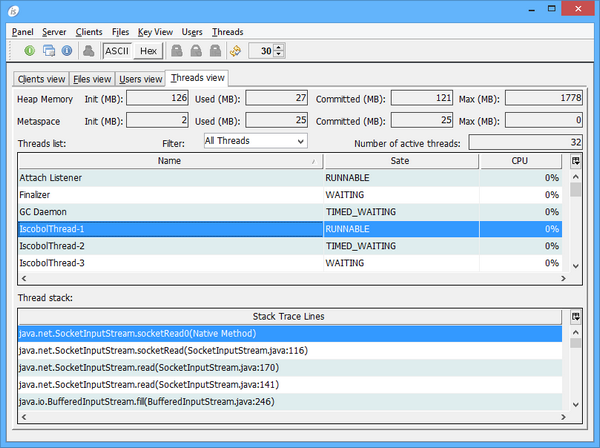
Note that the Stack column and the Threads view are available only if the isCOBOL Server is running with a JDK (Java Develpment Kit) and the JDK’s tools.jar library is in the Classpath. If you find errors on the isCOBOL Server console, like for example "Error opening zip file or JAR manifest missing", then you also have to specify the full path of isCOBOL’s utility.jar using the javaagent option, e.g.
A row for each connected client (including the client you used to start the panel) is shown. Columns have the following meaning:
User name. The number between square brackets is the ID specified in the user administration panel (see Format 4). A value of -1 means that the user has not been registered using the administration panel. In this case the operating system user name is shown
The special value "File server" identifies a connection to the isCOBOL File Server. This kind of connection cannot be killed from the panel.
The special value "Server Call Session" identifies a remote call. The text between square brackets tells the name of the program that was remotely called. See Remote objects for details. This kind of connection cannot be killed from the panel as well.
Tool-bar buttons and menu items allow you to
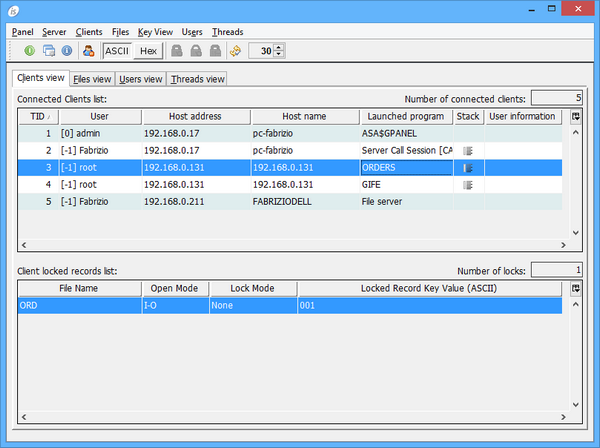
If iscobol.file.lock_manager * is set in the server configuration, then the panel dialog looks more complex:
A row for each record locked by the selected client is shown in the second table. Columns have the following meaning:
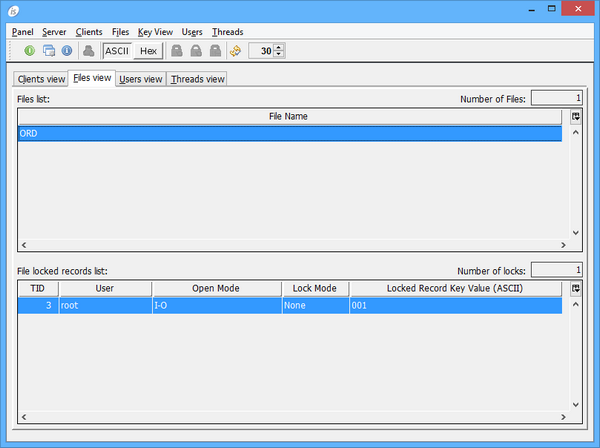
The File View page looks like this:
A row for each file with locks is shown at the top. The table below is populated with details about the locked records in the selected file. Columns have the following meaning:
The additional tool-bar buttons and menu items allow you to
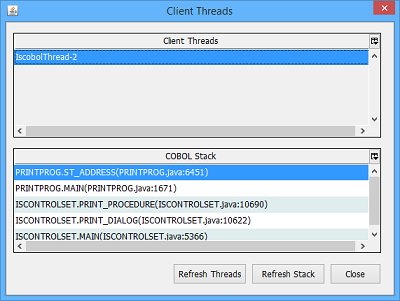
The Threads view page shows the list of all the active threads running in the Application Server. For every thread you can see the status, the CPU usage and the stack. It’s possible to filter the list in order to see only the COBOL programs threads. It’s also possible to terminate a thread, despite this operation is not suggested and should be performed only in critical situations where a thread cannot be terminated in a clean way.
The “Auto refresh” check box in the tool-bar allows to automatically refresh the lists. The refresh is performed every 30 seconds by default, but the time can be changed using the spinner field or by setting the configuration property iscobol.as.panel.refresh_timeout *.
Format 6
To debug a remote application from a client pc, use the following command.
iscclient [-J-Discobol.debug.code_prefix=src1\n[src2\n]...] [-debugport dport] [-port port] [-hostname host] [-c remote-config] [-lc local-config]-d program [ arg1 [arg2] ... ]
where:
port, host, remote-config, local-config, program, arg1 and arg2 are the same as in Format 1
 
port and host can specify multiple values separated by comma. See Specifying multiple hostnames and ports for details.
dport is the port on which the Remote Debugger is listening (by default: 9999).
src1 and src2 are the directories containing the source files for the remote classes. The source files must be found by the Debugger client side. src1 and src2 may be separated by \n as shown above if you need a cross-platform command, otherwise you can separate them using the current operating system path separator (e.g. ";" on MS Windows).
The iscobol.debug.code_prefix setting can be stored in local-config instead of being passed as a command-line option.
 
If the source files are not available client side, you can ask the server to send the source through TCP/IP. In order to activate this feature set iscobol.debug.remote_source (boolean) to true on the client and iscobol.debug.remote_source_enabled (boolean) to true on the server. The server will look for source files in its Classpath and iscobol.debug.code_prefix setting.
 
Notes:
o
In order to debug, the iscobol.jar library is required in the client Classpath
o
Format 7
To run a utility in thin client mode, use the following command:
iscclient [-port port] [-hostname host] [-user usr] [-password pwd] -utility utility_name
where:
port is the port number the server is listening to.
host is the host machine where the server is running.
 
port and host can specify multiple values separated by comma. See Specifying multiple hostnames and ports for details.
usr and pwd are the administrator user credentials, that are necessary to access the administration panel under the default configuration. If not passed, then a login prompt will be shown. See Login for more information.
utility_name is the name of the utility that you want to run. Refer to Utilities for the list of available utilities.
Specifying multiple hostnames and ports
The port and host parameters can specify multiple values separated by comma. The client will attempt to connect to the fist available hostname and port pair. Hostnames and ports are paired from the first in the list to the last, such as hostname1:port1, hostname2:port2 and so on. Consider the following command, for example:
The Client will try to connect to IP 192.168.0.1 port 5555 first. If the connection fails, then the Client will try to connect to IP 192.168.0.2 port 5556. If the numbers of specified hostnames and ports do not match, the last in the shorter list will be used for creating all remaining pairs. The following command, for example,
is equivalent to
iscclient -hostname 192.168.0.1,192.168.0.1 -port 5555,5556 MENU
while the following command
is equivalent to

Copyright (c) 2017 Veryant
Contact us
Please share your comments on this manual or on any
Veryant product documentation with the email button at the top left