1. Click File in the menu bar
2. Select New
3. Choose isCOBOL EIS Project
1. Copy the SONGS.cbl source file to the source folder of the project
3. Select Open With
4. Choose isCOBOL Service Editor
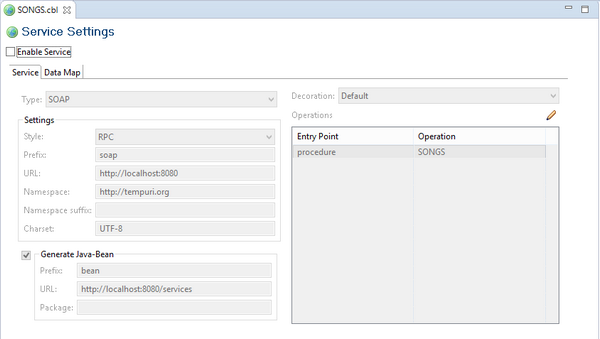
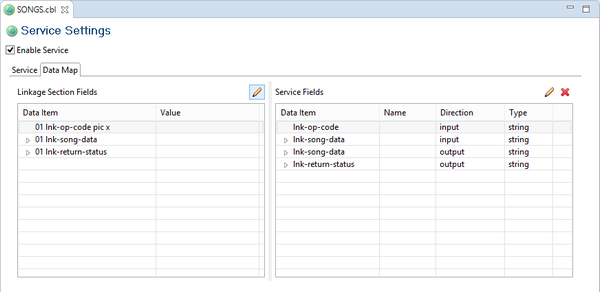
1. Check the option Enable Service
2.
3.
• the directive $set “servicebridge” “1” is added at the top of the source file
• the directive $elk input is added on top of the lnk-op-code group item
• the directive $elk output is added on top of the lnk-returns-status group item
• source/soapSONGS.cbl : the bridge program that allows our program to be called as Web Service, and
• output/SONGS.wsdl : the XML descriptor of the service
• Select Run As
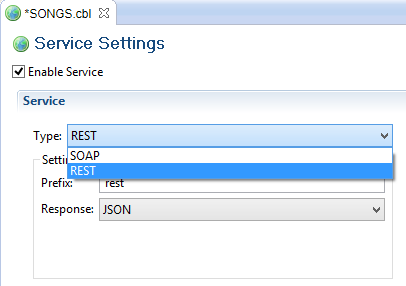
• Choose isCOBOL EIS ApplicationWe’ve just demonstrated how to create a SOAP Web Service. With the next step, we’re going to generate a REST Web Service instead. To achieve it, return to the Service Editor and change the field Type from SOAP to REST.Note - By switching the Type value, the Settings frame content changes, allowing to set only the settings that are suitable for the selected service type.After it, save modification and recompile SONGS.cbl to obtain the following new item in the project source folder:
• restSONGS.cbl : the bridge program that allows our songs program to be called as REST Web Service.
• Select Run As
• Choose isCOBOL EIS Application
| Copyright (c) 2017 Veryant |
| Contact us |
|
Please share your comments on this manual or on any Veryant product documentation with the email button at the top left |