skip to main content

Web Direct 2.0 option : Running the sample application

Running the sample application
Web Direct 2.0 comes with a sample web application. This chapter explains how to deploy and run the sample application.
1. Build the war
1.
Windows
Linux/Unix
2.
Windows
Linux/Unix
3.
Windows
Linux/Unix
4.
Windows
Linux/Unix
5.
Windows
Linux/Unix
6.
Windows
Linux/Unix
7.
Windows
Linux/Unix
8.
2. Deploy the war
The following instructions are applicable to Apache Tomcat. However, your webapp could be executed also by other servlet containers.
Download Tomcat from http://tomcat.apache.org/ and install it, if you haven't installed it yet. Start the Tomcat service.
Note: if you're running Tomcat on Unix/Linux, ensure that the working directory is the Tomcat home directory. If you start the process from another directory (e.g. the Tomcat bin directory), then relative paths in the sample will not work.
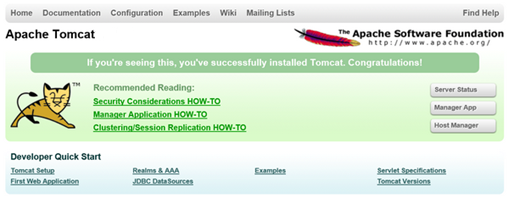
When Tomcat service is started, open a browser and navigate to "http://127.0.0.1:8080/" . The browser displays something like:
Select Tomcat Manager link in order to application administration pages. You will be prompted for username and password. By default Tomcat has the user "admin" with no password. You can refer to tomcat-users.xml.
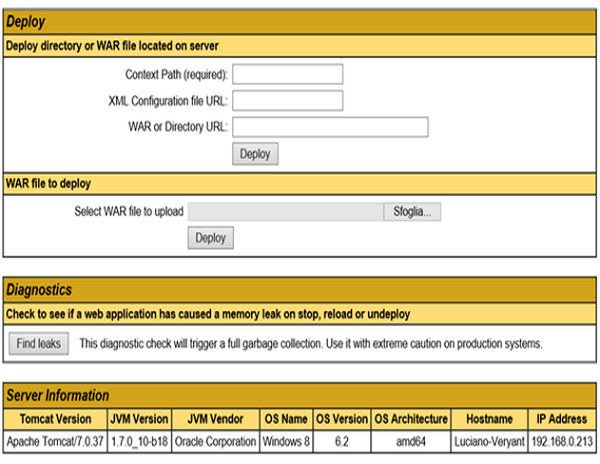
Using the Tomcat Web Application Manager, scroll down to the Deploy dialog and use the Browse button to select the Web Application Archive file (wd2.war)
An item called "wd2" will be added to the Applications list.
Edit the file iscobol.properties in classes' folder to insert valid license codes. The following licenses are required:
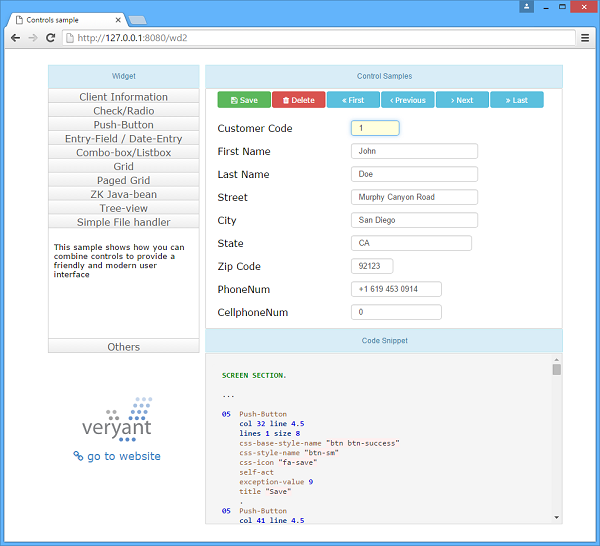
To run the sample, open a browser and navigate to "http://127.0.0.1:8080/wd2".

Copyright (c) 2017 Veryant
Contact us
Please share your comments on this manual or on any
Veryant product documentation with the email button at the top left