skip to main content

Web Direct 2.0 option : Developing a hello world application from scratch

Developing a hello world application from scratch
The next chapter illustrates the steps to create a hello world application from scratch, compile it, deploy it and eventually debug it.
Writing the source
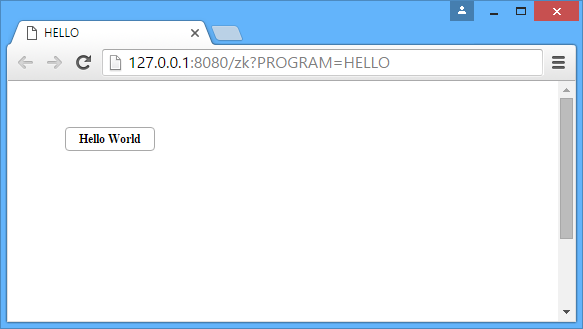
Programs for the web are standard COBOL programs. The following source code produces a screen with a button with "Hello World" inside:
       01  SCREEN1.
        03 PUSH-BUTTON 
           DISPLAY STANDARD GRAPHICAL WINDOW.
           DISPLAY SCREEN1.
           ACCEPT  SCREEN1 ON EXCEPTION CONTINUE.
Compiling the source
Since we plan to debug the program after the deployment, we'll use the -d option.
The -wd2 option is also used to be sure that our program is compatible with Web Direct.
Creating the configuration file
In order to run with Web Direct 2.0 we must instruct the program to use a specific guifactory class.
In addition, the license codes for the isCOBOL Framework and Web Direct 2.0 must be provided, so our configuration file will look like this:
iscobol.guifactory.class=com.iscobol.gui.client.zk.GuiFactoryImpl
iscobol.license.2017=XXXXXXXXXXXXXXXXXXXXXXX
iscobol.eis.license.2017=XXXXXXXXXXXXXXXXXXXXXXX
The configuration file will be placed between program classes in the webapp directories. However, the configuration is also loaded from \etc directory and from the user home directory depending on the drive where Tomcat was started and on the user that owns its process.
Deploying in Tomcat
The easiest way to deploy a new web app is to:
Note - the subfolders "pdf" and "upload" are specific for the WD2 sample; you can either delete them or rename them, depending on your needs. The other subfolders instead should be left unchanged.
o
one of the folders listed in iscobol.code_prefix configuration property
or, if iscobol.code_prefix is not set,
o
o
Running the application
From Web browser considering our program that is called HELLO, you will use the following URL: http://127.0.0.1:8080/test/zk/IsMainZK?PROGRAM=HELLO to have:
Debugging
In order to debug the web application
When you connect to the page of your application you will see a blank page. It means that the web application is waiting for the Debugger to connect. Launch the following command to use the Debugger:
Where:
sourcePath is the list of paths were program source code and copyfiles can be found
serverIp is the ip (or name) of the web-server where the web application is running, in our case: 127.0.0.1
If everything has been done correctly, you should see the web page show up while you debug the DISPLAY statements.

Copyright (c) 2017 Veryant
Contact us
Please share your comments on this manual or on any
Veryant product documentation with the email button at the top left