skip to main content

Running the sample application : Running the sample application in isCOBOL IDE and exporting it to APK

Running the sample application in isCOBOL IDE and exporting it to APK
isCOBOL IDE includes a sample project that shows how an isCOBOL Mobile application is done and how does it work.
Follow these steps to import the projects in the IDE and test them:
1.
2.
Click on the File menu
3.
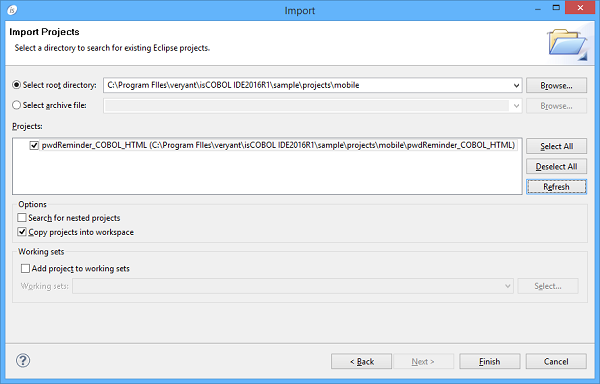
Choose Import
4.
Choose General > Existing Project into Workspace
5.
Having Select root directory checked, browse for the folder "C:\Program Files\Veryant\isCOBOL IDE2017R1\sample\projects\mobile"
6.
Optionally check the option Copy project into workspace and click Finish
At this point you can run the sample application as EIS Application.
To run as EIS Application:
1.
Right click on pwdReminder_COBOL_HTML in the Explorer tree
2.
Choose Run As > isCOBOL EIS Application
Note - for best rendering of the CSS styles it’s suggested to use an external browser rather than the internal Eclipse browser. To use and external browser, before performing the above steps:
1.
Click on Window in the menu bar
2.
Choose Preferences
3.
Choose General > Web Browser in the tree
4.
5.
Click on the Apply button
Once you’ve tested the application through the web-browser, it’s time to make it and Android app.
1.
Right click on pwdReminder_COBOL_HTML in the Explorer tree
2.
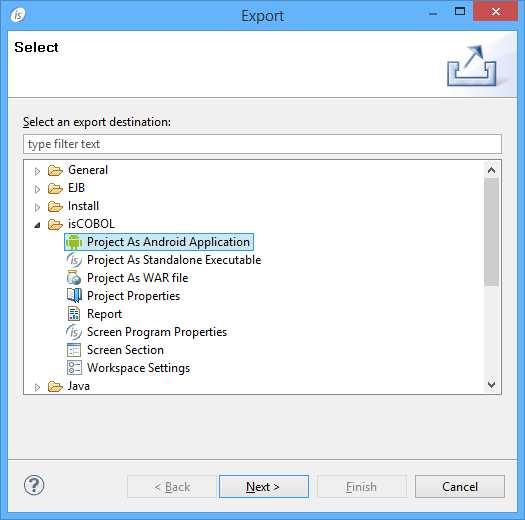
Choose Export
3.
Choose Project as Android Application from the isCOBOL tree
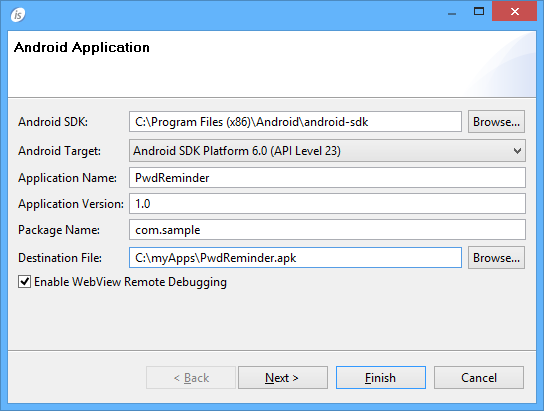
4.
5.
click on the Finish button
See How to install and use the sample application for further information.

Copyright (c) 2017 Veryant
Contact us
Please share your comments on this manual or on any
Veryant product documentation with the email button at the top left