skip to main content

Development : Developing an hello world application from scratch : Creating and testing the Android App

Creating and testing the Android App
Using isCOBOL IDE
1.
Right click on simple_COBOL_HTML in the Explorer tree
2.
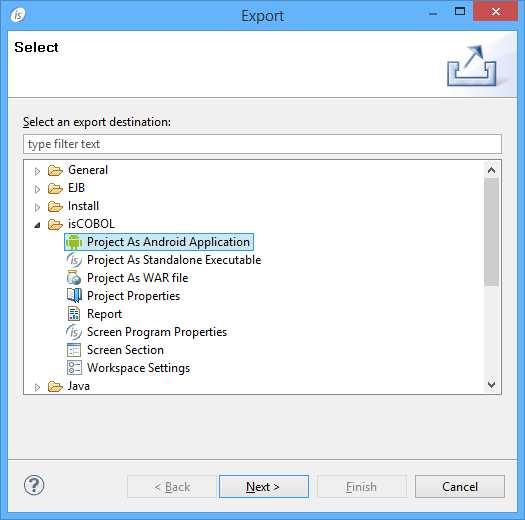
Choose Export
3.
Choose Project as Android Application from the isCOBOL tree
4.
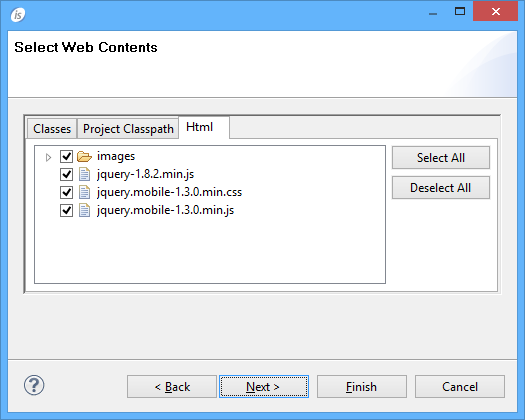
5.
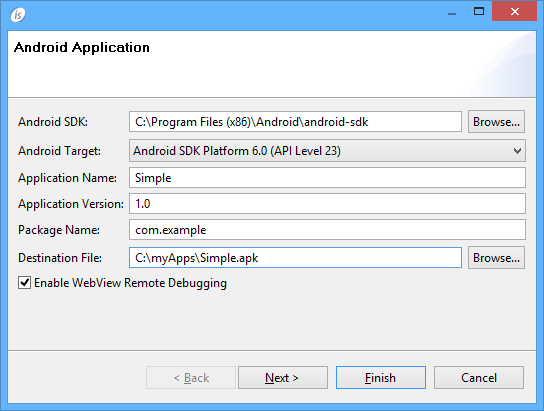
Note - Do not use the same package for more applications. The package is a sort of unique ID in the Android system.
 
The "Enable WebView Remote Debugging" option enables the ability to attach the app with a Chrome browser in order to debug the HTML/JS frontend as described here.
 
6.
7.
8.
9.
10.
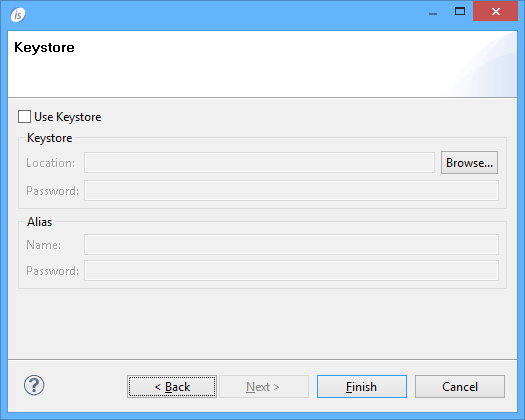
Note - If no keystore is provided, the IDE will include a default one. The default keystore is suitable for testing purposes. Before publishing your app in the Marketplace, you should apply a valid keystore to it.
Onc e the apk has been generated, you can test it either in the AVD (Android Virtual Device, the emulator installed along with the SDK) or in a real physical Android device.
In order to test it in a real device, copy the apk to the device through USB or network file transfer features and install it.
In order to test it in the AVD, run the following command:
Note - the above command must be adjusted according to the location and name of your apk.
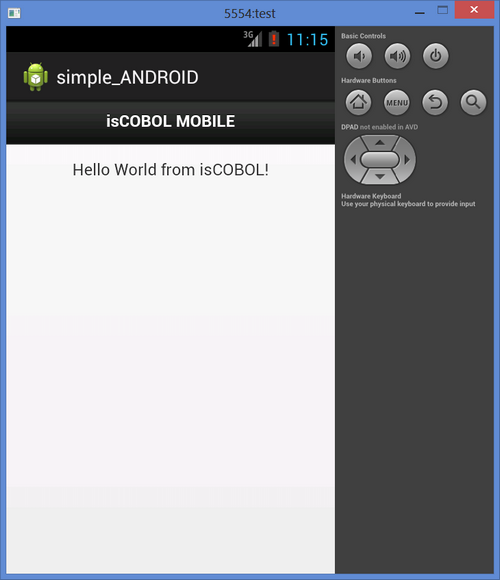
The above command installs the app in the emulator and starts it. Find your app in the emulator screen and touch it to start it:
 
Without isCOBOL IDE
1.
2.
You should obtain the following output
3.
In the directory you created at step 1, edit the file AndoirdManifest.xml and replace the current content with the following:
<?xml version="1.0" encoding="utf-8"?>
<manifest xmlns:android="http://schemas.android.com/apk/res/android"
    package="com.example.simple_android"
    android:versionCode="1"
    android:versionName="1.0"
    android:installLocation="auto" >
    <uses-permission android:name="android.permission.WRITE_EXTERNAL_STORAGE" />
    <uses-sdk
        android:minSdkVersion="8"
        android:targetSdkVersion="17" />
    <application
        android:allowBackup="true"
        android:icon="@drawable/ic_launcher"
        android:label="@string/app_name" >
            android:name="com.example.simple_android.MainActivity"
            android:label="@string/app_name"
            android:configChanges="keyboardHidden|orientation|screenSize" >
                <action android:name="android.intent.action.MAIN" />
                <category android:name="android.intent.category.LAUNCHER" />
The manifest file describes the fundamental characteristics of the app and defines each of its components.
Our main goal is to obtain write permissions on the device in order to store the html files for the UI and let the COBOL program create files if necessary.
4.
Switch to the res\layout sub folder, rename the file main.xml to activity_main.xml and replace the current content with the Content of main_activity.xml
5.
Switch to the src\com\example\simple_android sub folder and edit the file MainActivity.java replacing the current content with the Content of MainActivity.java.
6.
Add ismobile.jar (taken from C:\Program Files\Veryant\isCOBOL2017R1\mobile\lib) and cobol.jar (previously produced) to the libs sub folder.
7.
Create a folder named “raw” under the res\layout sub folder and put html.zip (previously created) into that folder.
8.
(optional) Edit the file strings.xml under the res\values subfolder and provide a custom name for your app. The current name is “MainActivity”, you might call it “simple_ANDROID” to make it match with the project name or you can use whatever name you prefer.
9.
The above command builds the apk file of your app
10.
11.
12.
The above command installs the app in the emulator and starts it. Find your app in the emulator screen and touch it to start it:
Note - for better performance and a more accurate result, you can copy the apk on a real physical Android device and test it there.
Content of main_activity.xml
<WebView  xmlns:android="http://schemas.android.com/apk/res/android"
    android:id="@+id/webView1"
    android:layout_width="fill_parent"
    android:layout_height="fill_parent"
The WebView control allows to render the HTML user interface of our application. This is the only control we need.
Content of MainActivity.java
package com.example.simple_android;
import java.io.PrintWriter;
import java.io.StringWriter;
import javax.crypto.Cipher;
import javax.crypto.spec.SecretKeySpec;
import android.os.Bundle;
import android.webkit.WebView;
import com.iscobol.iscobol4android.IsCobolMainActivity;
public class MainActivity extends IsCobolMainActivity {
   @Override
   protected void onCreate(Bundle savedInstanceState) {
      super.onCreate(savedInstanceState);
      final WebView webView = (WebView) findViewById(R.id.webView1);

Copyright (c) 2017 Veryant
Contact us
Please share your comments on this manual or on any
Veryant product documentation with the email button at the top left