skip to main content

Getting Started : Testing the product using sample data

Testing the product using sample data
File Server startup
isCOBOL UDBC requires isCOBOL File Server to be up and running.
The isCOBOL File Server is provided along with isCOBOL.
Assuming that you have correctly installed isCOBOL and its thin client, you can start the File Server with the following command:
Database configuration
Windows
Run the Configuration Tool.
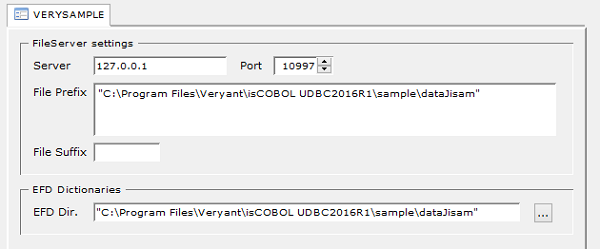
Create a new database in the following way:
1.
Click on File / New Database
2.
3.
Complete the mandatory fields as follows:
Click on the Save button.
 
Linux/Unix
A sample configuration file is provided with the product. You will find a file named udbc.ini in the folder vUDBC2017R2/etc.
Copy that file either under /etc or in the user home directory.
Edit it and ensure that the entries EfdDirectory and FilePrefix point to the proper directory. The directory is vUDBC2017R2/sample/dataJisam and contains both data files and EFD dictionaries.
If a graphical desktop is available, you can manage the ini file with the following graphical utility:
 
Thin Client and Code Prefix:
VUDBCCFG can be used in thin client environment as well. Use this command to start it:
iscclient -hostname <server-ip> -port <server-port> -utility COBVUDBCCFG
The utility will configure databases on the server machine.
First query on isCOBOL UDBC
Windows
1.
A correct startup will produce a similar output:
2.
In the Utility Shell, start the command-line SQL tool by issuing the command:
Where VERYSAMPLE is the name of the database.
You will be prompted for a password, type ‘admin’.
Type a query to select data from one of the archives available in the database:
Check the result.
Linux/Unix
1.
A correct startup will produce a similar output:
2.
Where VERYSAMPLE is the name of the database.
You will be prompted for a password, type ‘admin’.
Type a query to select data from one of the archives available in the database:
Check the result.

Copyright (c) 2017 Veryant
Contact us
Please share your comments on this manual or on any
Veryant product documentation with the email button at the top left